 Raising
 iPad Kid: What It Means and How to Help Your Child Unplug
If someone has called your child an iPad kid, or you've seen the memes and started to worry, you're not alone. An "iPad kid" is internet slang for a young child absorbed in a tablet, and the tablet's design explains much of it. Here's what the term means, why screens grab children ages 4–7 so strongly, and what actually helps, from the settings on the iPad to the minutes after it turns off.

What is an iPad kid?
Short answer: "iPad kid" is internet slang, often meant as a put-down, for a young child who seems absorbed in a tablet: watching fast short videos or playing games for long stretches, tuning out the people around them, and sometimes melting down when the device is taken away.
The phrase spread through memes and comment threads. The typical picture is a child in a restaurant, face lit by a screen, not looking up. The plural "iPad kids" is used the same way, as if a whole generation were one type of child.
It's a behavior pattern, not a diagnosis; there's no medical category called "iPad kid." And it describes how a child acts around one kind of device and content, not who the child is.
Why the "iPad kids" label doesn't help
Short answer: Labels stick to the child, while the pattern comes mostly from the device, the content, and the habits around them. Changing those is easier than changing who a child thinks they are.
Children ages 4–7 are still forming a picture of who they are, and they often borrow the words adults use. A label can sometimes turn "I watched too many videos today" into "I'm the kind of kid who can't stop."
It also lands on parents, who usually hand over a tablet for understandable reasons: a long drive, a work call, a dinner out after a long week. Shame doesn't help anyone set limits. A plan does.
Why do tablets grab young kids so strongly?
Short answer: Many apps and video platforms are designed to keep people watching, and young children have the hardest time resisting that design. It's the product, not a flaw in your child.
Autoplay. When one video ends, the next starts by itself, so the decision to stop has to come from the child.
Endless feeds. A feed of short videos never runs out, and each clip feels like "just one more."
Variable rewards. You never know if the next video or prize will be great. Games use the same idea with surprise prizes and daily rewards. Unpredictable rewards keep people checking, adults included.
The AAP's 2026 policy statement Digital Ecosystems, Children, and Adolescents makes a related point: children's media use can't be judged by screen limits alone, and media designed to maximize engagement can displace sleep and movement. Our research summary on screen time and behavior explains what that statement and a large review of studies do and don't show.
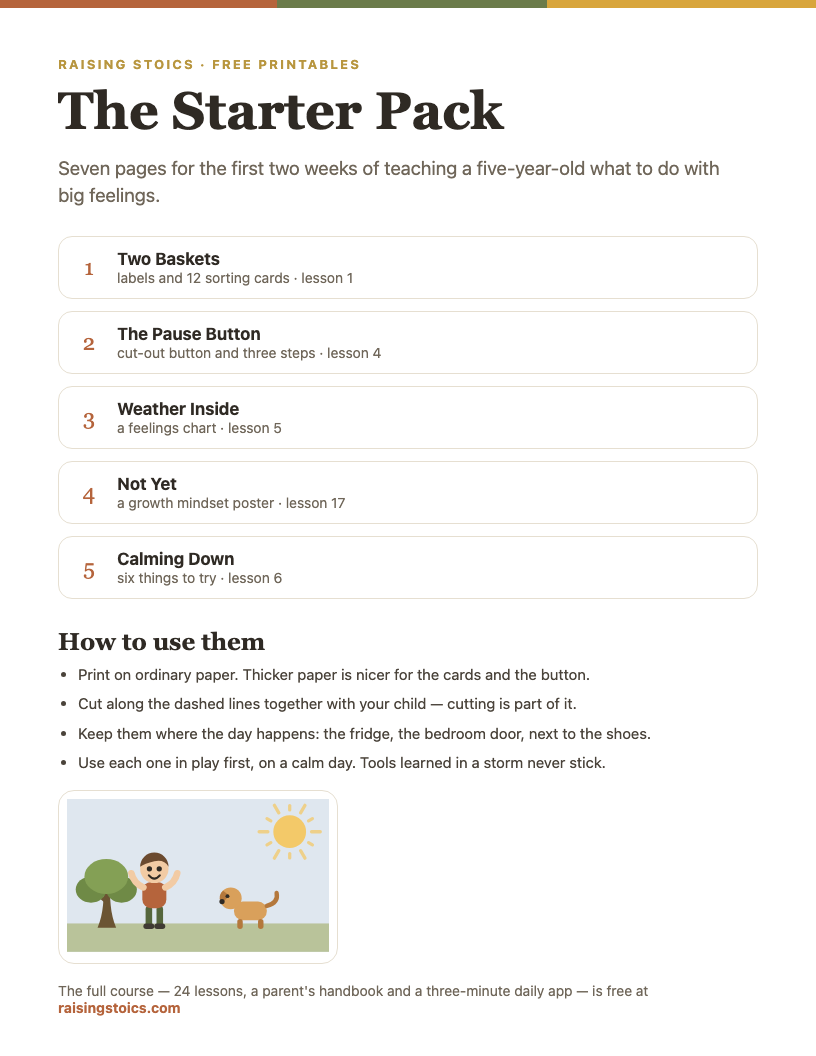
The Big Feelings Starter Pack
Nine pages for the first two weeks: a sorting game, a pause button, a feelings chart and a calm-down poster.
Download the free PDF See all 9 pages
Part of a free 9-page starter pack. Sign in with a code from your email — no password.
Why does my child melt down when the iPad is taken away?
Short answer: Stopping something enjoyable is hard for young children, and abrupt endings to fast, engaging content may make it harder. A meltdown at that moment often reflects a skill that is still developing, not a problem with your child.
One second they're in the middle of a video they love; the next, it's gone. Adults interrupted mid-episode feel a flash of irritation too. A 5-year-old has the same flash and much less ability to manage it. Some children switch off easily and others don't; temperament, content, and how the ending happened all play a part.
The content, the ending, and the skill of handling disappointment can all be changed. The next sections take them one at a time.
Build endings into screen time
The single most useful change is to give screen time an ending your child can see coming, so it doesn't depend on you snatching the tablet.
Choose units, not open time. "Two episodes" or "one level" is easier for a young child to grasp than minutes, because the ending is part of the content. Agree before the screen comes on.
Turn off autoplay in the apps your child uses, so the end of an episode is actually an end. Many video apps have this in their settings or profile options.
Avoid endless feeds at this age. A show with episodes or a game with levels has a stopping point built in; a feed doesn't.
Let the device do some of the stopping. When the iPad itself says "time's up" (see the settings below), the limit is a fact about the device rather than a fight with you.
For a fuller set of family rules, see our guide to screen time rules for kids.
A transition routine for turning the iPad off
Short answer: A short, predictable routine helps children move from the screen to the next thing. The same steps, every time, make the ending boring in a good way.
A simple routine for ages 4–7:
1. Warn before the end. "After this episode, the iPad goes to sleep." Say it once, clearly, while the episode is still playing. 2. Let them finish the unit. Stopping mid-scene is the hardest kind of stop. Wait for the end of the episode or level. 3. Give them the job. Let your child press the button, close the cover, or put the iPad in its "bed," a basket or drawer where it lives. Doing it themselves gives them some control over the ending. 4. Have something next. "Screen off, then snack" or "screen off, then we go outside." A clear next step pulls attention forward. 5. Name what went well. "You turned it off yourself. That was hard, and you did it."
Keep the steps the same even on difficult days; routines work because they repeat.
Watch together and choose slower content
Co-viewing. Sitting with your child for some of their screen time makes it shared. You see what they watch and can talk about it ("Why do you think she's sad?"). Research suggests young children learn more from media when an adult talks with them about it, and the AAP's 2026 statement describes watching together positively. A few minutes at the start and a question afterward still count.
Slow content. Not all screen time is the same. A gentle show with a story, calm pacing, and an ending is very different from a feed of fast clips with sound effects every few seconds. Signs of slower content:
- episodes with a beginning, middle, and end;
- scenes that last long enough for a child to follow what's happening;
- no ads, no prizes for tapping, and no countdown pushing them to keep going;
If you're wondering about specific platforms, our directory pages on YouTube Kids and CoComelon collect ratings and design features.
What to do during the meltdown
Short answer: Stay calm, keep the limit, and help your child ride the feeling out. Giving the iPad back to stop the crying can teach a child that crying brings the iPad back.
In the moment:
- Keep words short. "You wanted more. It's hard to stop." One sentence, then quiet.
- Hold the limit kindly. "The iPad is asleep now." Don't re-argue the rule; you've already explained it.
- Stay close. Sit nearby. Offer a hug if they want one. If they're hitting or throwing, move the iPad and anything else breakable out of reach and keep everyone safe.
- Wait for the wave to pass. Big feelings rise, peak, and fall. Your job is to stay steady until it falls, not to stop it early.
- Then move on. Offer the next thing from your routine: the snack, the walk, the toy.
Later, when everyone is calm, ask briefly: "When the iPad turned off, a big wave came. What could help next time?"
Our guide to 5-year-old tantrums has more on the before, during, and after.
Build self-control off the screen
Settings help in the moment, but the long-term goal is a child who can stop something fun because they've practiced stopping. That skill grows mostly away from screens.
The Pause Button. Teach your child there's an invisible button they can press between "I want more!" and grabbing the iPad back. Practice it in play first: freeze dance, Simon Says, Red Light Green Light. Then use the same words at the end of screen time: "Press your Pause Button. Now what do you want to do?"
Two Baskets. Some things are up to me: what I do and say. Some aren't: the battery, the family's screen rule. The end of screen time goes in the "not up to me" basket; how I react goes in the "up to me" basket.
Our article on self-control activities has more games that build this skill at ages 4–7.
Keep restaurants and car rides possible without a screen
Restaurants and car rides are where the "iPad kids" meme usually happens, and where screens feel most necessary to tired parents. A tablet on a long trip is a reasonable choice. The aim is to keep screen-free outings possible, so the iPad is one option, not the only one.
Pack a small "waiting kit." Crayons and a small notebook, a deck of cards, stickers, a couple of small figures. Keep it only for outings, so it stays interesting.
Play talking games. I Spy, "Would you rather…?" questions, finding things of one color, guessing what the next car will be, and making up a story where each person adds one sentence.
Give them a job. Holding the menu, counting the forks, watching for the food.
Start short. A quick lunch out or a short drive is a good first try. If it goes well, say so.
Plan the screen, if there is one. On a long flight, decide ahead of time when the tablet comes out and when it goes away.
How to make iPad kid friendly: the settings that help
Apple's built-in tools can take a lot of the fighting out of screen time. Menu names change between versions of iPadOS, so the paths below may look slightly different on your device.
Guided Access: lock the iPad to one app. This keeps a child inside a single app. Turn it on in Settings > Accessibility > Guided Access and set a passcode. Then open the app your child will use and triple-click the top button (or the Home button on iPads that have one) to start a session. Your passcode is needed to leave the app. On iPadOS 18 and earlier, some Guided Access shortcuts use a double-click instead.
Screen Time: schedules, limits, and content. In Screen Time settings, you can:
- set Downtime, a schedule when only the apps you choose are available (newer versions may call this a Screen Time schedule);
- set App Limits, a daily amount of time for an app or a category such as games or entertainment (on a child's account, this may appear as time allowances);
- use Content & Privacy Restrictions to limit content by age rating, block explicit content, and control what can be installed or changed.
Set a Screen Time passcode that your child doesn't know, so the limits stay in place.
Family Sharing and Ask to Buy. If you set up Family Sharing with a child account, you can manage that child's Screen Time settings from your own device (in Settings, under Family and your child's name). Ask to Buy sends you a request whenever your child tries to download an app or make a purchase, and you approve or decline it.
A few non-Apple habits help too: turn off autoplay in video apps, delete apps built around endless feeds, and charge the iPad overnight outside the bedroom.
Settings work best as backup for the routine, not instead of it.
What parents ask
Paraphrased from questions parents often post on Reddit, Mumsnet, BabyCenter, and other parenting forums.
“Friends joke that my kid is an 'iPad kid.' How do I stop feeling judged?”
Short answer: the label lands on parents as much as on children, and it rarely tells the whole story. Many parents hand over a tablet for understandable reasons, like a long drive or a work call. What helps more than shame is a plan: endings your child can see coming, a short transition routine, and a few screen-free options for outings.
“We took the iPad away completely. How long until the meltdowns stop?”
Short answer: there's no set timeline, and it varies from child to child. Many parents on forums describe a hard first stretch, then more play once boredom turns into something to do. Having a few replacements ready, such as building toys, time outside, or a show you watch together, may make the gap easier.
“My 4-year-old only wants fast short videos and says real shows are boring.”
Short answer: after fast clips, slower shows may feel dull at first. Try shows with episodes and a clear ending, and watch the first few minutes together. Asking about the story, such as what a character might do next, may help a child get into it. Avoiding endless feeds at this age, and turning off autoplay, can make the switch easier.
“My kid sneaks the iPad into bed and watches in the dark. What helps?”
Short answer: many families charge the iPad overnight outside the bedroom, in the kitchen or a parent's room, so it isn't there to sneak. A Downtime schedule in Screen Time can also limit apps at night. Stay calm about it, and ask what they were watching or why they couldn't sleep, since worry or boredom is sometimes behind it.
FAQ
How do I lock the iPad screen for kids?
Use Guided Access, which locks the iPad to one app. Once it's on in Accessibility settings, open the app and triple-click the top or Home button. Before starting, you can circle parts of the screen to disable them, such as an ad banner or a menu button, and in the session options you can set a time limit. To end the session, triple-click again and enter your passcode.
How do I set up an iPad for kids?
Start with a separate child account through Family Sharing, so you can manage settings from your own device and use Ask to Buy. Then set a Screen Time passcode, choose a downtime schedule and app time limits, and set content restrictions by age. Finally, remove apps with endless feeds, turn off autoplay, and decide together where the iPad sleeps at night.
Is screen time bad for kids?
Screen time isn't bad in itself, but it can push out things young children need, such as sleep, active play, and conversation. A large 2022 review found small links between more screen time and more behavior problems, without showing that screens cause them. What's on the screen, and what it replaces, matter more than minutes alone. Our research summary on screen time and behavior goes into the details.
Should parents limit screen time for kids?
Yes, some limits usually help, but they work best as part of a bigger plan. The AAP's 2026 policy statement looks beyond hour limits to the content and design of media and to whether screens crowd out sleep, play, and in-person time. Clear rules your child knows in advance, plus routines for turning the device off, usually cause fewer fights than limits enforced on the spot.
Screen Time Rules for Kids: A Simple Family Plan for Ages 4–7
Screen time rules for kids ages 4–7 that don't end in a meltdown: eight simple family rules, how to introduce them, and what to do when a rule breaks.
Read next →Stopping something fun is a skill a child can practice: Two Baskets, The Pause Button, and The Wave are lessons 1, 4, and 6 of the program.